Archive for the 'podcasting' Category

Recording a Skype Call Using GarageBand, SoundFlower, and LineIn

Andy Rush on Jul 17th 2009

View Mobile Version (iPhone, iPad, etc.)

Ingredients

1 – A Macintosh Computer connected to the Internet (the Macintosh computer will come with the iLife software, including GarageBand)

1 – The Skype software

1 – The Soundflower software

1 – The LineIn software

Directions

UPDATE! This document has added some clarifications that may help people who were having issues.

  1. Start by going into the System Preferences (Apple Menu>SystemPreferences…) Click on the Sound icon.
  2. On the Sound Input tab, select the input you are recording with. In our case we have a USB headset with a microphone. On the Sound Output tab select “Soundflower (2ch)”
  3. Open the Skype software and choose the Preferences (Skype Menu>Preferences). Click the Audio icon. Choose “Soundflower (2ch)” as both the audio input and audio output.
  4. Open up the Garageband program and choose the Preferences (GarageBand>Preferences). Click the Audio/MIDI icon. Choose the audio output that you wish to hear the GarageBand output from, again, in our example we’re using the USB headset. The Input should be set to SoundFlower (2ch)
  5. Finally open up the LineIn program. In the Input from field select the microphone you are using. Once again, we’re using the USB headset. In the Ouput to field select “Soundflower (2ch)” and then make sure to click the Pass Thru button.
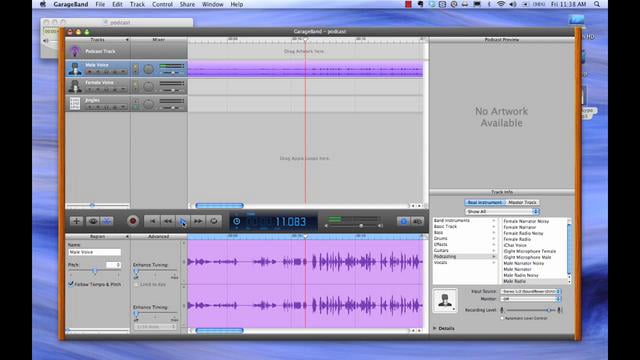
  6. You are now ready to record in GarageBand. Start a new Podcast project. Depending on your version of GarageBand the wording can be different, but in GarageBand ’08, from the File Menu select New and choose Create New Podcast Episode.
  7. Again, using GarageBand ’08, you will be presented with four new tracks. A Podcast Track, a Male Voice track, A Female Voice track and a Jingles track. You will record your microphone and the Skype Call on the Male Voice track. Be sure to turn on the (audio) Monitor in the Track Info area of GarageBand. You may also want to adjust the volume level in Skype for the callers
  8. If you have all of the above settings correctly set, you should see the audio level indicators move when you speak into the microphone AND when people on your Skype call are talking. If that is the case then you just need to click the record button in GarageBand, and then begin your “show”.

Thanks to Ahmad Humeid’s blog post which was the inspiration for this screencast – here is a summation of the settings to make this all work.

GarageBand:
Audio output: Built in Audio
Audio Input: Soundflower (2ch)

Skype:
Audio output: Soundflower (2ch)
Audio input: Soundflower (2ch)

System Preferences/Sound:
Output: Built-in Audio
Input: Audio line in (I am using a Mic)

LineIn Application:
Input from: Built-in Audio: Line In (ie the Mic)
Output to SoundFlower (2ch)

Dont forget to click the ‘Pass Thru’ Button in LineIn.

Filed in Audio,podcasting | 6 responses so far

Produce an Instant Podcast from an iPhone

Andy Rush on Jun 22nd 2009

View Mobile Version (iPhone, iPad, etc.)

Ingredients

1 – An iPhone with access to the Internet (WiFi or 3G)

1 – A WordPress blog hosted on a web server (example uses Bluehost and has “Simple Script” installation script) with FTP access

1 – The FeedWordPress plugin installed on the WordPress blog

1 – The AudioBoo App for the iPhone

1 – An account at AudioBoo.fm

Directions

  1. These directions will assume you have a working WordPress installation with the FeedWordPress plugin already installed, and also the AudioBoo app and site already configured.
  2. Make a recording with your AudioBoo App on the iPhone. Start the app, click the Record icon then Start. Make you recording 5 minutes or less. Hit the Pause button to stop recording and then Publish when you’re ready to upload your file. You’ll need to fill out a few bits of information (a title, some tags, and a photo if you wish).
  3. The file will begin to upload to the audioboo.fm website. Progress is shown on the iPhone.
  4. When the AudioBoo app says it’s done uploading, your audio file should be available almost immediately at the AudioBoo website.
  5. The FeedWordPress plugin is now used to transfer (syndicate) the files at the AudioBoo website to the WordPress blog that you have chosen. You can set the plugin to syndicate the files automatically, or manually.

Filed in Audio,iPhone,podcasting | 2 responses so far

How to Subscribe to a Podcast in iTunes

Andy Rush on Jan 29th 2009

Watch a screencast of this recipe.

Ingredients

1 – Computer (PC or Mac)

1 – Apple’s iTunes program (current version as of this post 8.0.2)  – download here

1 – An Internet website that has a podcast feed

Directions

  1. Navigate to the website that has a podcast feed. This type of site would not be the norm, so this is likely a site that makes it very obvious that there is a podcast associated with it, or a site that was recommended by someone you know.
  2. Look for an icon somewhere on the webpage (not the one in the web address field) that looks like this:
  3. If you don’t see that icon, look for some text that mentions “subscribe to feed” or “RSS“. Linked text that reads “Entries (RSS)” is a common way the feed for a WordPress blog is encountered, usually near the bottom of the screen.
  4. You can right-click on the icon or text link and choose either Copy Link Location (Firefox), or Copy Shortcut (Internet Explorer).
  5. Alternatively, you can click on the icon or the text and it should lead you to a page with a few options to subscribe to the RSS feed. What’s important is that the feed URL is now in the web browser’s address bar. Copy the URL so that you can paste it into iTunes.
  6. Start the iTunes program.
  7. Click on the Advanced menu and choose Subscribe to Podcast…
  8. Paste the link shortcut into the box labeled URL:
  9. Click the OK button. This will add the podcast to the iTunes Podcast library and will start to download the latest podcast from the site. If you wish to download other, earlier podcasts, you can click the Get button next to the podcast that you want.
  10. Clicking the Refresh button while viewing the Podcast library will check the site for the most recent podcast.

Filed in Audio,podcasting | One response so far